
Your digital life holds sensitive info like passwords and credit card numbers. Keeping this safe is essential in today’s world. Malicious software can steal your data, slow your machine, or lock you out.
Effective computer virus prevention begins with protecting your hardware. Simple habits can keep your files safe and your system running well.
This guide will show you the top five ways to stay safe online. We’ll talk about using reliable antivirus software, keeping a strong firewall, and smart browsing. Let’s take charge of your digital security today.
Key Takeaways
- Install trusted security programs to block threats.
- Always keep your firewall active to monitor network traffic.
- Use anti-spyware tools to protect your personal privacy.
- Run daily system scans to catch hidden issues early.
- Practice safe email habits to avoid clicking malicious links.
Understanding the Landscape of Digital Threats
As we rely more on digital tech, it’s key to know about digital threats to keep your data safe. You use devices connected to the internet for everything, storing lots of personal info. If these devices aren’t secure, thieves can get your info.
The world of digital threats is complex and keeps changing. Cybercriminals get smarter, using new ways to get past security and find weak spots.
The Evolution of Modern Malware
Malware has changed a lot, from simple viruses to complex threats like ransomware and spyware. Today’s malware is good at hiding, staying on systems for a long time.
Types of Modern Malware:
- Ransomware: Encrypts your files and asks for money to unlock them.
- Trojans: Look like real software but let hackers into your system.
- Spyware: Secretly watches what you do and steals your info.
Why Your Personal Data is at Risk
Your personal data is in danger because cyberattacks are getting better and we use digital tech a lot. Hackers want your data for identity theft and other bad stuff.
| Threat Type | Risk Level | Potential Impact |
|---|---|---|
| Ransomware | High | Data loss, financial loss |
| Trojans | High | Unauthorized access, data theft |
| Spyware | Medium | Monitoring, data theft |
Knowing about these risks is the first step to protect your data. By staying informed and taking steps to protect yourself, you can lower your chance of being a cybercrime victim.
Essential Strategies for Computer Virus Prevention
Preventing computer viruses starts with a strong defense plan. Knowing how to be proactive and spotting common weaknesses helps a lot. This way, you can lower the chance of your computer getting infected.
The Importance of Proactive Defense
Being proactive is crucial in stopping viruses. This means keeping your system and software up to date, using antivirus and antispyware, and having a firewall. Proactive defense helps stop threats before they can harm you.
To keep your device safe, download updates, use antivirus and antispyware, and firewalls. These tools work together to protect against malware and cyber threats.
Common Vulnerabilities in Home Systems
Home systems are often at risk because they lack strong security. Weak spots include outdated software, poor passwords, and unsecured networks. Identifying these vulnerabilities is the first step to making your home system safer.
To safeguard your computer and data, know about these weaknesses. Update your software, use strong passwords, and be careful with public Wi-Fi. This will help protect you from harm.
Install Reliable Antivirus Software
Installing antivirus software is key to protecting your computer. It keeps your device safe from viruses. Viruses can harm your data, slow down your computer, or let spammers use your email.
There are many antivirus options out there. It’s important to pick one that offers good protection, is easy to use, and doesn’t slow down your computer.
Choosing the Right Security Suite
When picking antivirus software, think about a few things:
- Comprehensive Protection: Choose software that fights viruses, malware, spyware, and more.
- Ease of Use: The software should be simple to install and use.
- System Performance: Pick software that doesn’t slow down your computer.
- Additional Features: Some software comes with extra tools like password management and firewalls.
Keeping Your Definitions Up to Date
It’s important to keep your antivirus software’s virus definitions up to date. Old definitions can’t protect against new threats.
Most antivirus programs update automatically. Make sure this is turned on to keep your protection strong.
The Role of Real-Time Protection
Real-time protection is a must-have. It scans files, emails, and websites as you use them. This helps catch and block malware early.
Real-time protection is vital for stopping viruses. It constantly watches your system for threats. This way, it can catch and stop problems right away.
By choosing good antivirus software, a comprehensive security suite, keeping definitions updated, and using real-time protection, you greatly improve your computer’s safety. This helps protect against viruses and malware.
Always Use a Firewall for Network Security
A firewall is key to keeping your digital life safe. It sits between your computer and the internet. It controls what comes in and goes out, based on your security rules.
Using a firewall always lowers the chance of hackers getting into your system. It’s a top way to fight viruses and malware. Firewalls stop hackers from finding and using your system’s weak spots.
How Firewalls Block Unauthorized Access
Firewalls check each piece of data trying to get in or out. They decide to let it through or block it. They look at things like where the data is coming from and where it’s going.
As Bruce Schneier says, “Firewalls are a must for a secure network. They add a vital layer of defense against threats from outside.”
“Firewalls are a necessary component of a secure network. They provide a crucial layer of protection against external threats.”
Configuring Windows Defender and Third-Party Firewalls
Windows Defender Firewall is a built-in tool for Windows users. It’s strong against unauthorized access. To set it up, go to the Control Panel, then “System and Security,” and “Windows Defender Firewall.” There, you can pick what programs to allow or block and set up alerts.
If you prefer something else, many third-party firewalls are out there. They offer more features and can be customized. Look for one that’s easy to use, good at finding threats, and works well with your system.
Distinguishing Between Hardware and Software Firewalls
Firewalls are either hardware or software. Hardware firewalls are in routers and protect the whole network. Software firewalls are on computers and let you control traffic for each app.
| Firewall Type | Key Characteristics | Protection Scope |
|---|---|---|
| Hardware Firewall | Built into routers, network-wide protection | Protects all devices connected to the network |
| Software Firewall | Installed on individual computers, application-specific control | Protects the computer it’s installed on |
Knowing the difference between hardware and software firewalls helps you choose the best for your network. This way, you get full protection against online dangers.
Deploy a Robust Anti-Spyware Package
A specialized anti-spyware tool is your best defense against hidden tracking software. Spyware is malicious software installed without your consent. It can monitor your online activities and collect personal information, including sensitive data like passwords and financial details.
Detecting Hidden Tracking Software is crucial for maintaining your privacy and security online. Anti-spyware software is designed to identify and remove such threats. It provides a layer of protection that generic antivirus software might miss.
Detecting Hidden Tracking Software
Spyware can be particularly insidious, hiding in the background and tracking your every move online. A robust anti-spyware package can detect and eliminate these threats. This ensures your online activities remain private.
For instance, some spyware can record everything you type, including sensitive information like passwords and credit card numbers. Protecting your keystrokes is, therefore, a critical aspect of online security.
Why Standard Antivirus May Not Be Enough
While standard antivirus software provides a broad spectrum of protection against various types of malware, it may not always be equipped to handle the more sophisticated spyware threats. This is where a dedicated anti-spyware solution comes into play. It offers targeted protection against these stealthy invaders.
“The rise of sophisticated spyware has made it clear that traditional antivirus solutions are no longer sufficient on their own. A dedicated anti-spyware tool is now a necessity for comprehensive online security.”
Protecting Your Privacy and Keystrokes
To effectively safeguard your online privacy and keystrokes, consider the following:
- Install a reputable anti-spyware package that is regularly updated.
- Avoid downloading software from untrusted sources.
- Be cautious with email attachments and links from unknown senders.
By taking these steps, you significantly reduce the risk of falling victim to spyware and other malicious threats.
| Feature | Standard Antivirus | Dedicated Anti-Spyware |
|---|---|---|
| Malware Detection | General malware | Specific spyware threats |
| Keystroke Protection | Limited | Advanced |
| Privacy Focus | General | High |
Perform Daily Full System Scans
Keeping your computer safe is easier with daily full system scans. This method catches viruses and malware early, preventing big problems. By adding daily scans to your routine, you keep your computer safe from new threats.
It’s key to know how to use your antivirus software well. This includes understanding different scan options and setting them up right. Doing this boosts your computer’s security and keeps it running smoothly.
Scheduling Automated Maintenance
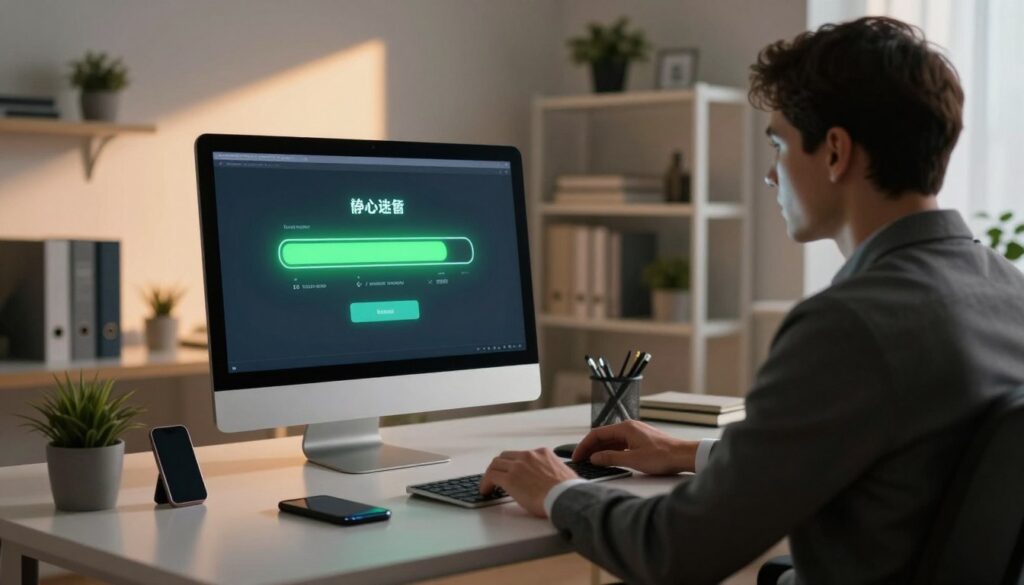
Automated maintenance makes scanning easy and hassle-free. Most antivirus programs let you set scans for when you’re not using your computer. This could be at night or when you’re out.
To set up automated scans, open your antivirus software. Go to the settings or preferences and find the scan options. You can pick how often to scan, when, and what kind of scan to run.
The Benefits of Deep Scanning vs. Quick Scanning
Knowing the difference between deep and quick scans is important. A quick scan looks at the most at-risk areas of your computer. It’s fast but might miss some threats.
A deep scan checks everything thoroughly. It takes longer but finds and removes more complex threats.
| Scan Type | Speed | Thoroughness |
|---|---|---|
| Quick Scan | Fast | Limited |
| Deep Scan | Slow | Comprehensive |
Managing System Resources During Scans
To avoid slowing down your computer during scans, manage resources well. Scans work best when your computer is not busy. Closing unused programs helps too.
Some antivirus programs let you adjust scan priority or pause and resume scans. This helps keep your computer running smoothly while still scanning for threats.
Practice Safe Browsing and Email Habits
To keep your computer and personal data safe, it’s key to have good habits online. Cyber threats are getting smarter, so being careful is crucial. This means being cautious when you’re on the internet and checking your email.
Identifying Phishing Attempts
Phishing attacks are common and can trick you into sharing personal info. These scams often look like they’re from real places, like banks or big companies. To stay safe, watch out for emails or messages that ask for your personal info or have weird links.
Red flags to watch out for:
- Emails with spelling and grammar mistakes
- Messages that create a sense of urgency
- Requests for personal or financial information
- Suspicious links or attachments
Avoiding Malicious Downloads and Pop-ups
Malicious downloads and pop-ups can harm your computer. They can lead to malware or data breaches. Be careful when downloading software or clicking on pop-ups. Stick to trusted sources for downloads, and don’t click on pop-ups that seem off.
The Dangers of Unverified Email Attachments
Email attachments can spread malware. Be careful with attachments from unknown senders. Never open an attachment from someone you don’t know or trust. Even if it seems legit, check the attachment’s authenticity before opening it.
| Safe Email Habits | Unsafe Email Habits |
|---|---|
| Verifying sender information | Opening attachments from unknown senders |
| Avoiding suspicious links | Clicking on links from untrusted sources |
| Using antivirus software to scan attachments | Ignoring antivirus warnings |
By being safe online and with your email, you can lower your risk of cybercrime. Stay alert and remember, your online safety is up to you.
Maintaining Long-Term System Health
Keeping your computer in top shape is key to avoiding data loss and cyber threats. Focus on two main things: keep your operating system updated and back up your data regularly.
Keeping Your Operating System Patched
It’s vital to update your operating system often. These updates fix security holes that malware could use. They also patch up new security flaws, keeping your system safe.
Enable automatic updates on your operating system. This way, you get and install patches right away. It’s a smart move to keep your system safe from hackers.
The Value of Regular Data Backups
Backing up your data regularly is a must. It helps you get back your files if your system gets hacked or fails. Backups mean you can restore your system to a safe state, reducing losses.
Schedule regular backups to an external drive or cloud storage. This keeps your data safe, even if your computer gets malware or crashes.
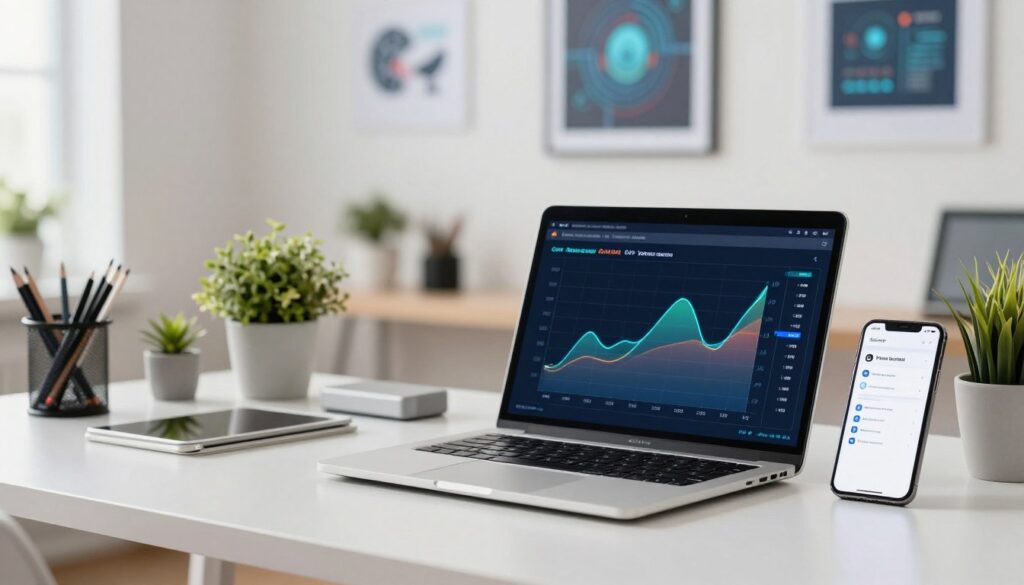
Combining a patched operating system with regular backups boosts your system’s health and security. This strategy fights off malware and cyber threats. It also keeps your business running smoothly, even when unexpected problems arise.
Conclusion
By following the top 5 tips in this article, you can make your computer safer from viruses and malware. These steps will help protect your computer from new digital threats.
First, install good antivirus software and use a firewall. Also, get anti-spyware, scan your system every day, and browse safely. These steps are key to keeping your data safe and your system healthy.
Remember, keeping your computer safe is a constant job. Always be alert and update your security often. This way, your computer will stay safe and you’ll enjoy a secure online experience.