
Creating a high-quality digital content is now crucial for modern creators. With the right tools and techniques, you can turn raw footage into a captivating story. Mastering these skills is key to standing out in a crowded online space.
Choosing the right video editing software is the first step to professional success. Programs like Adobe Premiere Pro and DaVinci Resolve offer advanced tools for precise cuts and color adjustments. For motion graphics, After Effects opens up endless creative possibilities for your footage.
Expert advice can streamline your workflow and enhance your production’s quality. These practical tips help manage complex timelines and boost your visual storytelling. By following these video editing tips, you ensure every frame is polished and professional.
Key Takeaways
- Select software that matches your specific project goals and skill level.
- Utilize Adobe Premiere Pro for industry-standard cutting and file management.
- Leverage DaVinci Resolve for professional-grade color correction and grading.
- Integrate After Effects to create high-quality motion graphics and visual effects.
- Keep your project files organized to save time during the final stages.
- Focus on storytelling techniques to keep your audience engaged from start to finish.
Mastering Your Workflow with Professional Video Editing Tips
To improve your video editing skills, it’s crucial to refine your workflow with professional tips. A well-organized workflow not only saves time but also boosts the quality of your video projects. Developing good habits, like organizing files and maintaining an efficient workflow, is key to success in video editing.
Choosing the right software for your project is a foundational step in mastering your workflow. The software you pick can greatly affect your productivity and the quality of your work.
Choosing the Right Software for Your Project
There are many video editing software options, each with its own set of features and benefits. DaVinci
Resolve Studio is a top choice among professionals for its comprehensive tools in editing, color grading, and audio post-production. It’s renowned for its advanced color grading capabilities and is commonly used in the film and television industry.
Other software, like Adobe Premiere Pro, offers robust editing features and seamless integration with other Adobe Creative Cloud apps. The choice between these software options depends on your project needs, your familiarity with the software, and your budget.
Optimizing Your Hardware for Smooth Playback
Optimizing your hardware is just as important as choosing the right software for a smooth video editing experience. A powerful computer with a strong processor, plenty of RAM, and a dedicated graphics card can greatly improve playback performance and reduce rendering times.
To optimize your hardware, consider upgrading your RAM to at least 16 GB, and use a recent-generation processor. A dedicated graphics card is also crucial for handling demanding video editing tasks, especially with high-resolution footage.
By combining the right software with optimized hardware, you can significantly improve your video editing workflow. This allows you to focus more on the creative aspects of your project.
Leveraging Adobe Premiere Pro for Efficient Storytelling
Adobe Premiere Pro streamlines your video editing, allowing you to focus on creative storytelling. This powerful software enhances your storytelling capabilities with a range of features.
Keyboard shortcuts are a key feature for improving editing efficiency. They speed up cuts, making the editing process smoother.
Utilizing Keyboard Shortcuts to Speed Up Your Cuts
Adobe Premiere Pro’s keyboard shortcuts enable quick task completion without menu navigation. For example, they allow for clip cutting, copying, and pasting, as well as timeline navigation.
- Use Ctrl+C (Windows) or Command+C (Mac) to copy clips.
- Use Ctrl+V (Windows) or Command+V (Mac) to paste clips.
- Use Spacebar to play and pause your sequence.
Mastering these shortcuts reduces time on repetitive tasks, allowing more focus on creative aspects.
Managing Complex Timelines with Nested Sequences
Nesting sequences in Adobe Premiere Pro simplifies complex timelines. It groups related clips, making project organization and editing easier.
| Benefits of Nested Sequences | Description |
| Simplified Timeline | Nesting sequences simplifies your main timeline by grouping related clips together. |
| Easier Organization | Nested sequences make it easier to organize your project by grouping related elements. |
| Improved Performance | Nesting sequences can improve playback performance by reducing the complexity of your main timeline. |
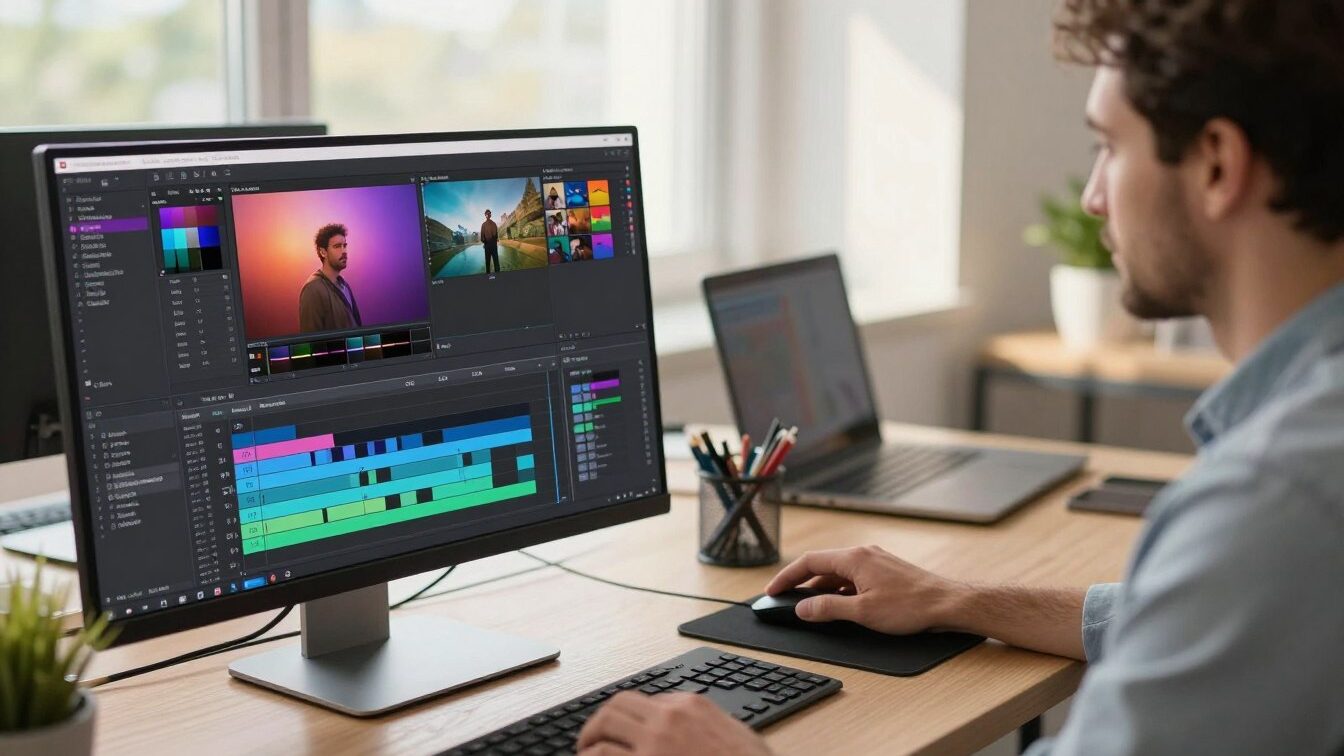
Adobe Premiere Pro nested sequences
Utilizing nested sequences keeps your project structure clean and organized. This facilitates collaboration and manages complex projects more effectively.
Harnessing the Power of DaVinci Resolve Studio for Color Grading
Color grading is an art form, and DaVinci Resolve Studio offers a comprehensive toolkit. It allows you to transform your footage into a visually stunning masterpiece. This is achieved through its advanced color grading capabilities.
DaVinci Resolve Studio is renowned for its professional-grade color grading tools. It is a vital asset for filmmakers and editors. Its node-based workflow enables precise and flexible color adjustments.
Understanding the Node-Based Workflow
The node-based workflow in DaVinci Resolve Studio is a powerful feature. It allows you to create complex color grades by connecting multiple nodes. Each node represents a specific adjustment or effect, enabling you to craft a customized color grading path for your footage.
To illustrate the node-based workflow, consider the following example:
| Node | Adjustment | Purpose |
| Node 1 | Exposure | Adjust overall brightness |
| Node 2 | Color Wheels | Fine-tune color balance |
| Node 3 | Curves | Refine contrast and exposure |
Applying Professional Color Correction Techniques
DaVinci Resolve Studio provides a range of tools for professional color correction. You can use the Color Wheels to adjust the color balance, Curves to refine contrast and exposure, and LUTs (Look-Up Tables) to apply pre-defined color grades.
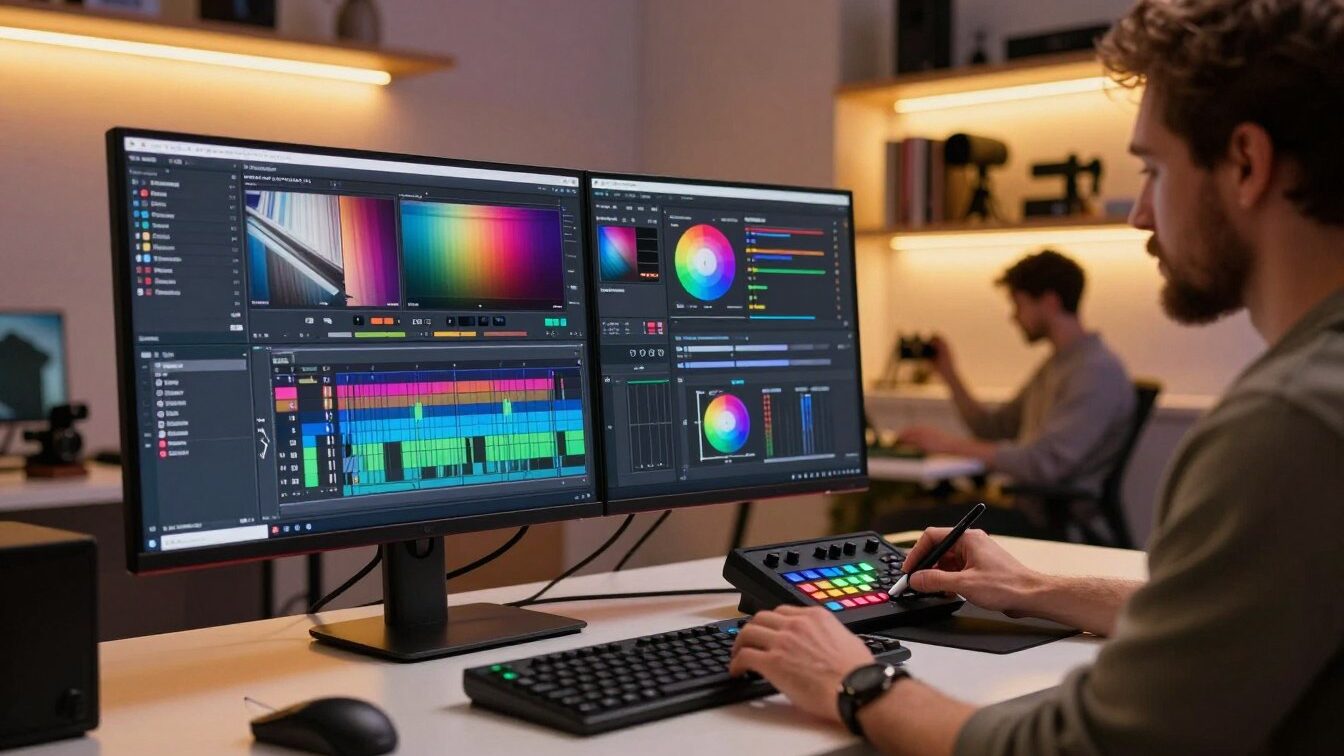
By mastering these techniques and utilizing the node-based workflow, you can achieve professional-grade color grading. This will elevate your video productions.
Elevating Visuals with Adobe After Effects Motion Graphics
Adobe After Effects empowers you to craft captivating motion graphics, boosting your video’s visual appeal. This tool is a powerhouse for creating professional motion graphics and visual effects. It’s designed to elevate your storytelling, making it more engaging.
Industry professionals rely on Adobe After Effects for its versatility and advanced features. Incorporating motion graphics into your projects adds a layer of engagement and professionalism.
Integrating Dynamic Titles and Lower Thirds
Adobe After Effects excels in creating dynamic titles and lower thirds. These elements are vital in video editing, providing context and conveying information to the viewer.
To craft dynamic titles, After Effects offers robust text animation tools. These tools enable you to customize appearance, movement, and timing, ensuring your titles align with your project’s style.
For lower thirds, design and animate graphics with text, logos, or other visual elements. After Effects comes with templates and presets to start with, or you can create custom designs.
Creating Seamless Transitions and Visual Effects
Adobe After Effects is celebrated for its ability to create seamless transitions and sophisticated visual effects. Utilizing keyframe animation and its extensive effects library, you can create transitions that are both smooth and visually stunning.
To achieve seamless transitions, try different techniques like fade-ins, fade-outs, and morphing effects. After Effects lets you fine-tune every detail, ensuring your transitions seamlessly integrate with your project’s narrative.
For visual effects, After Effects boasts a wide range of tools and plugins. Whether you’re adding subtle enhancements or complex CGI elements, it offers the flexibility and power needed.
By mastering Adobe After Effects, you can significantly enhance your video editing projects’ visual appeal. This makes them more engaging and professional.
Integrating Artificial Intelligence to Streamline Post-Production
As you hone your video editing skills, you’ll see how artificial intelligence (AI) changes post-production. AI is now part of video editing software, changing how editors work. It automates simple tasks and boosts creative abilities.
AI in post-production saves time and boosts the quality of the final product. By handling routine tasks, editors can dive deeper into creative work. This leads to more complex and captivating video content.
Automating Transcription and Subtitle Generation
AI’s biggest benefit in video editing is automating transcription and subtitle generation. AI tools can quickly and accurately transcribe dialogue, saving editors a lot of time. They also generate subtitles, which can be customized as needed.
Automated transcription and subtitle generation make editing faster and the final product more accessible to everyone.
Using AI Tools for Audio Cleanup and Color Matching
AI tools also improve audio and visual elements in video editing. For audio cleanup, AI algorithms remove background noise and fix damaged tracks. In color matching, AI ensures consistent color grading across clips.
These AI tools help editors achieve high-quality results with less manual effort. This makes post-production more efficient and effective.
By using AI in video editing, you can improve your workflow. This allows more time for creative work. As AI technology advances, its role in video editing software will become even more significant.
Conclusion
Mastering video editing is a blend of creativity, technical prowess, and the right tools. By using the tips from this article, you can make your workflow more efficient. This will help you create top-notch videos.
Professional video editing softwares like Adobe Premiere Pro, DaVinci Resolve Studio, and After Effects are game-changers. They offer advanced features like color grading, motion graphics, and AI in post-production. These tools can greatly improve your editing skills.
Using these softwares and techniques can save you time and reduce stress. This lets you focus more on the creative side of video editing. As you hone your skills, you’ll be able to craft videos that engage and impress your audience.
Effective video editing is not just about technical skills; it’s about storytelling. With the right software, techniques, and creative vision, you can bring your ideas to life. This way, you can achieve your video editing goals.
FAQ
Why should I choose DaVinci Resolve Studio over the free version?
DaVinci Resolve Studio offers essential professional features like the Neural Engine and advanced noise reduction. It also supports resolutions higher than 4K at frame rates above 60fps.
Is Adobe After Effects necessary if I already use Premiere Pro?
While Premiere Pro has basic animation tools, After Effects is dedicated to compositing. Use it for complex motion graphics, 3D tracking, or high-end visual effects.
What are the most important hardware components for video editing?
Prioritize a high-core count CPU, at least 32GB of RAM, and a powerful GPU. Fast storage, like NVMe SSDs, is vital for handling high-bitrate footage.
Can I use keyboard shortcuts across different video editing softwares?
Yes, most platforms allow customizing layouts. DaVinci Resolve Studio, for example, lets you select presets that mimic other software shortcuts, easing
transitions between applications.
How does artificial intelligence improve the color grading process?
AI analyzes luminance and chrominance to perform automatic “Color Match.” This ensures consistent color across shots, especially when using different
cameras.
It’s very good